Product tour
See how Swootle handles an AML workflow. Builder, customer portal, checks, rules and reporting.
View Swootle's workflow builder, customer portal, identity checks, risk rules, AI assistant, automation functions, reports and portal theme settings.
This page shows the main parts of a Swootle workflow using current screens from the demo account.
See both sides of the story.
Watch a 90-second interactive onboarding journey: create a workspace, build a workflow, issue a case, collect customer evidence, verify identity, approve and schedule the next review. Pause and try each step using fictional sample data.
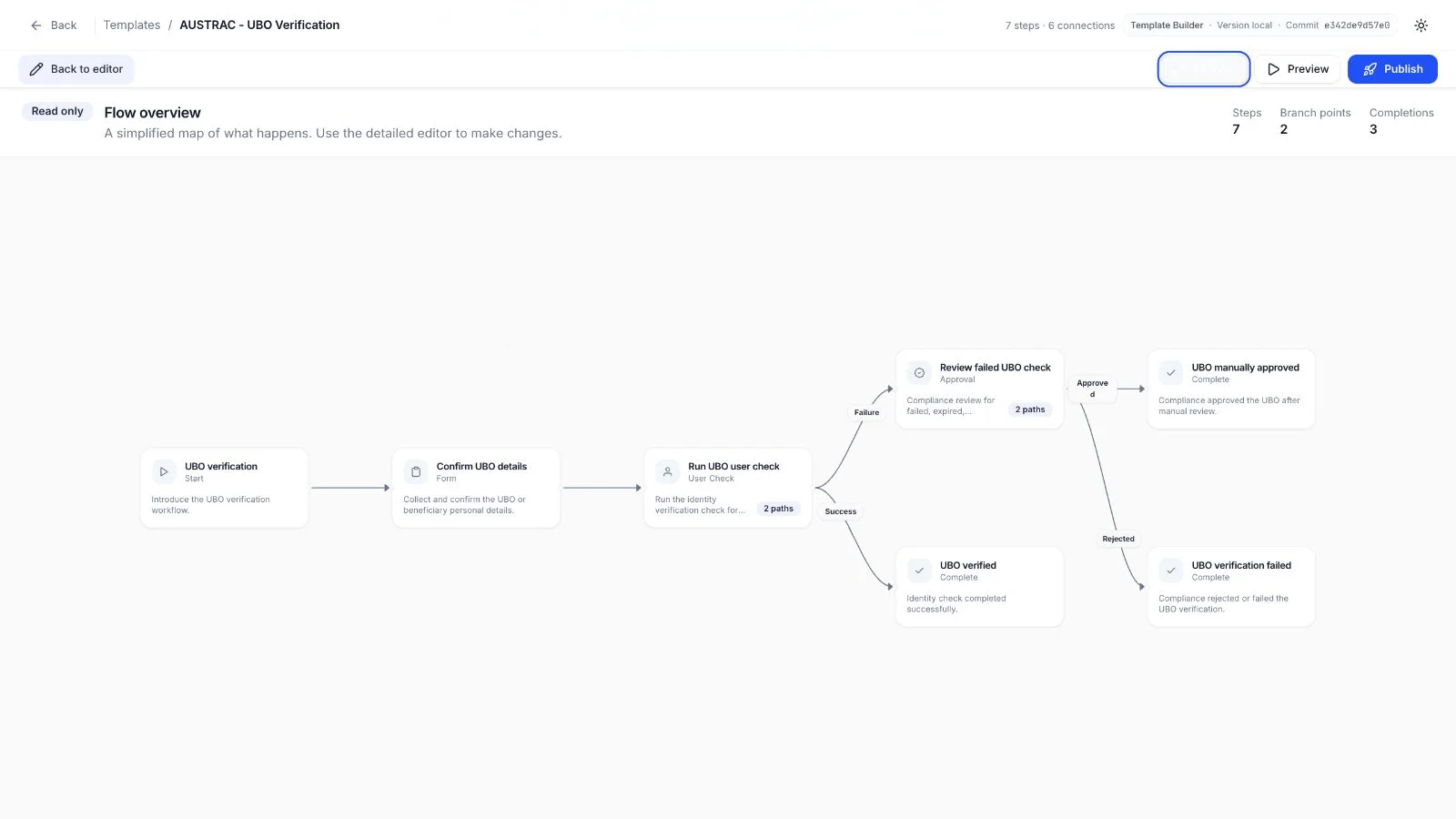
How the workflow is assembled
A workflow is assembled from step types. Each step has one defined responsibility, and connections determine what runs next. The Simple view shown above removes editing controls so the complete route is easier to review.
- Start: The single entry point for a case. It connects to the first customer or operational step.
- Form: Collects structured answers, declarations and files using the published form definition.
- Automation: Runs a configured function or starts a related workflow without manual input.
- Schedule: Creates a dated task for follow-up work, periodic reviews or another later action.
- Risk Calculation: Applies a selected ruleset and provides separate routes for the resulting risk levels.
- User Check: Runs an identity check for a person and routes the case by the returned status.
- Entity Check: Runs a business check using the configured entity name and country.
- Approval: Pauses the workflow for an authorised reviewer to approve or reject the case.
- Decision: Evaluates configured conditions and sends the case down the matching route.
- Complete: Ends a route and records its successful, rejected or manually resolved outcome.
Tour the operating journey
Customer workflow
01. Collect information in a guided workflow.
Customers complete questions and upload documents in a branded portal. Conditional steps show only the fields that apply, and saved answers remain with the workflow.
- Branded customer portal
- Conditional questions and related-party steps
- Autosave and visible progress
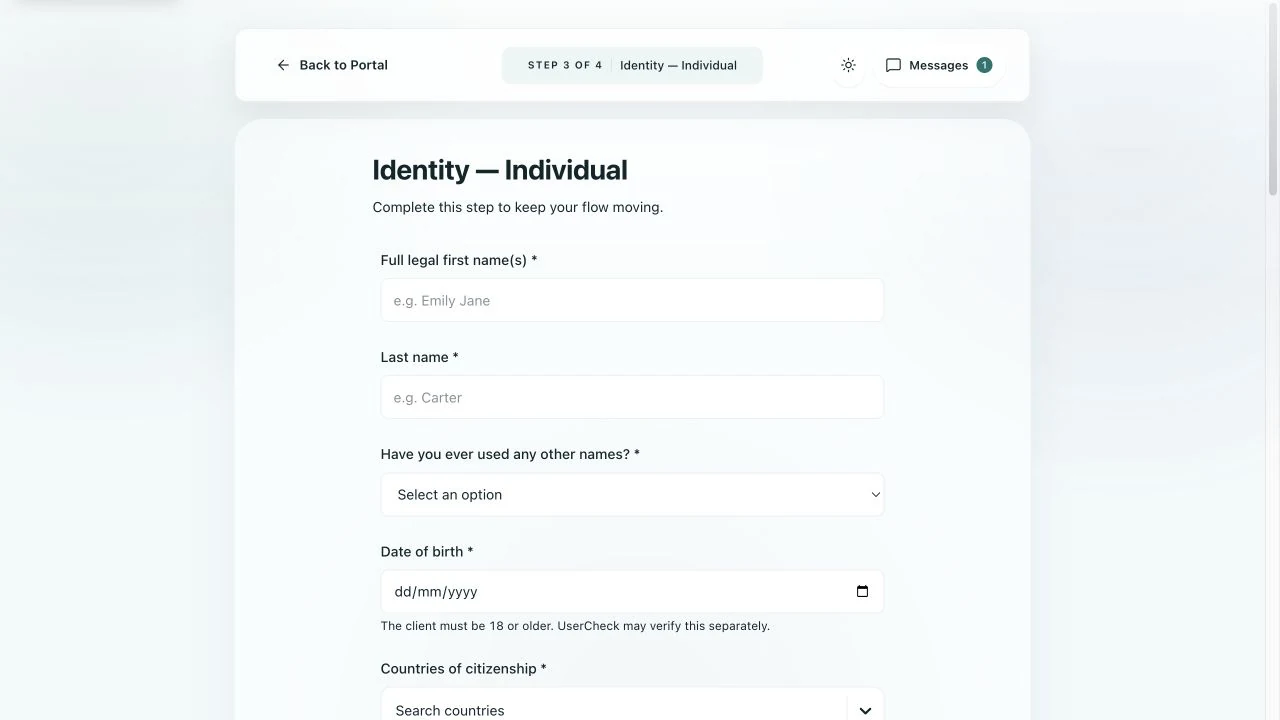
What this screen shows
This is one customer-facing form step. The header keeps the customer oriented, while the published template controls which questions appear, how answers are validated and which step follows. Saved answers remain attached to the active workflow instance.
- Progress: Shows the current step and the remaining workflow stages.
- Form fields: Collect the information configured for this step.
- Messages: Keeps customer and operations communication beside the workflow.
Identity and evidence
02. Run identity and screening checks in the workflow.
The workflow can request identity documents, liveness, face-match and screening checks. Returned results and exceptions are attached to the case for review.
- Document, liveness, face-match and screening checks
- Review flags for exceptions
- Evidence linked to the case
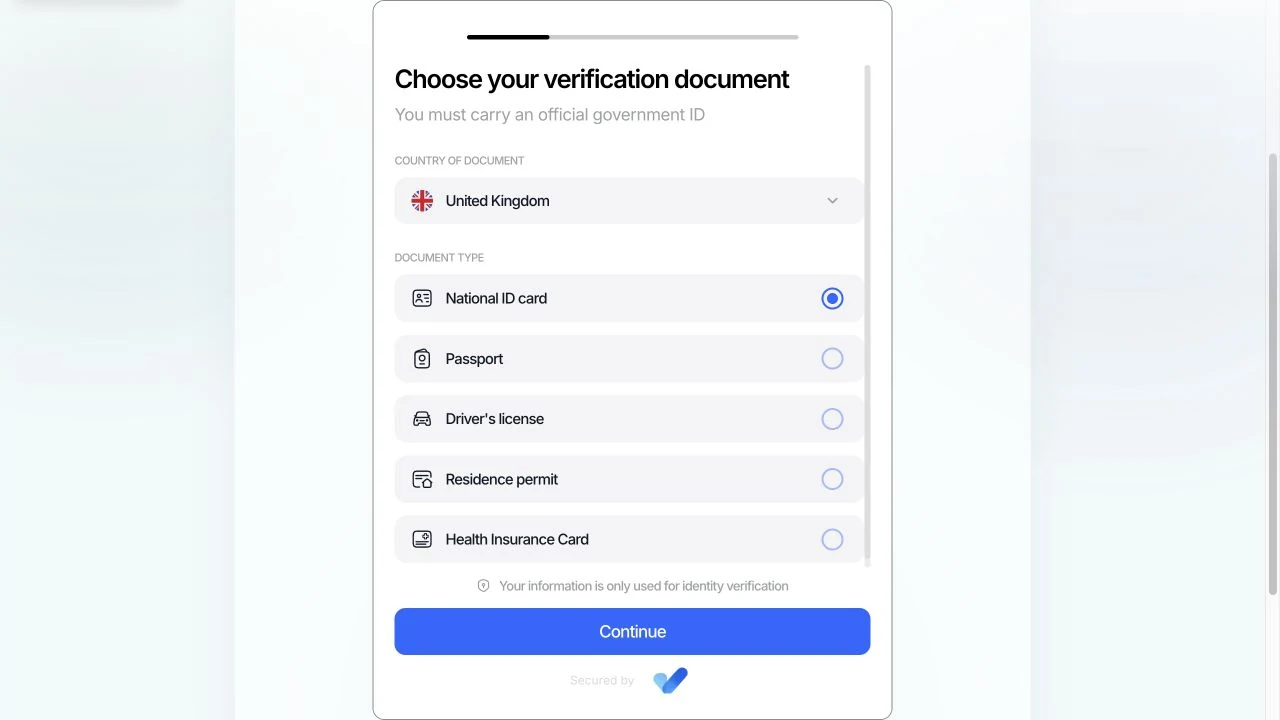
What this screen shows
The verification provider is presented inside the customer journey. The workflow creates the check and supplies its configuration; the provider collects the selected identity evidence and returns a structured status that determines the next workflow route.
- Provider screen: Runs inside the customer journey without sending the user to a separate case portal.
- Document choice: Limits the identity documents a customer can submit.
- Returned result: Adds check status and evidence to the related case.
Case details
03. Review the complete case record.
The case page brings the workflow status, customer details, evidence and review activity into one operational record.
- Current workflow status
- Assigned owner and customer record
- Evidence and review history
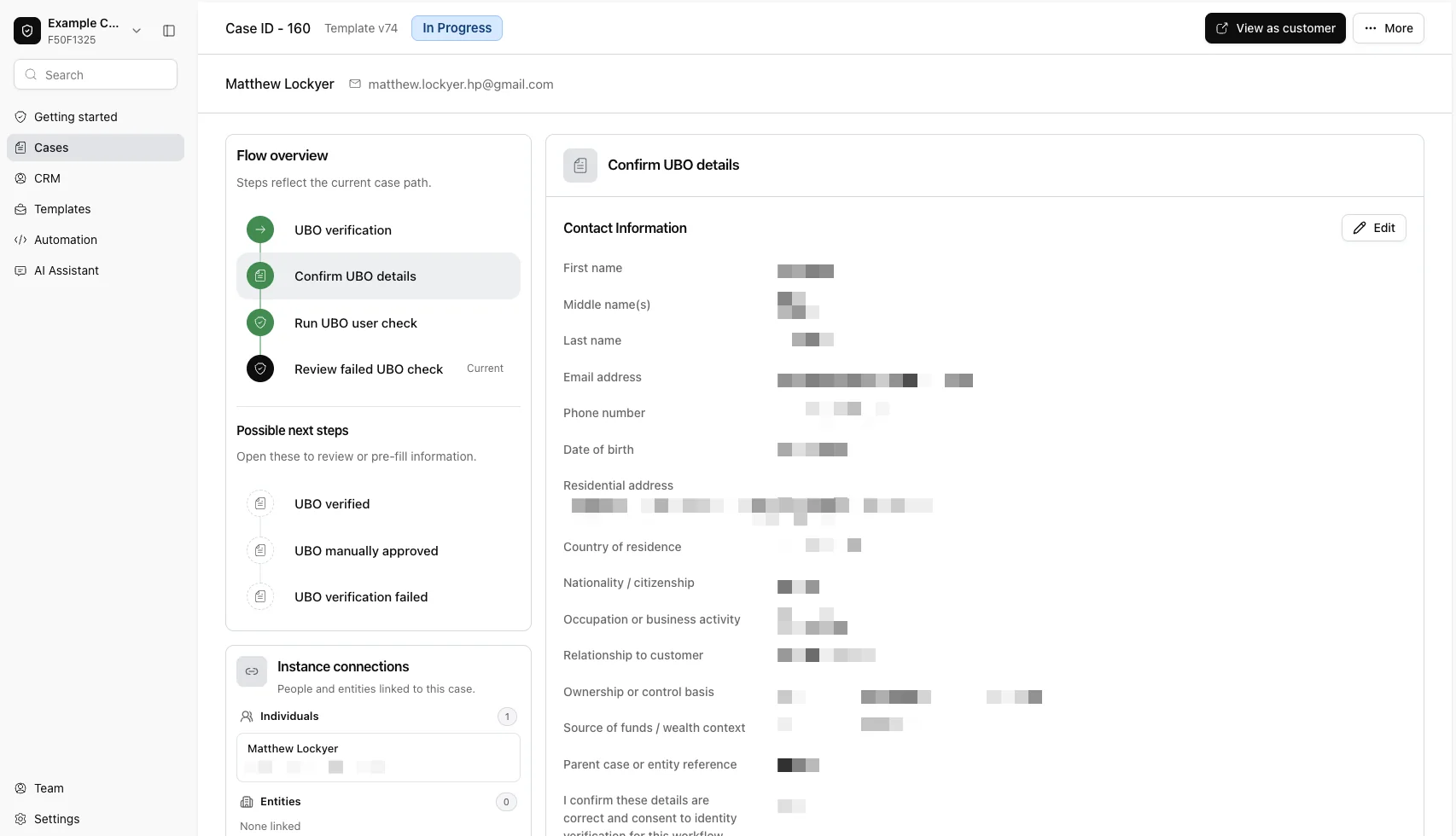
What this screen shows
This is the working record for one issued workflow. The flow overview shows the path already taken and the step that currently needs attention. Selecting a step exposes its submitted data, verification evidence or reviewer action in the main panel.
- Case header: Identifies the case, workflow, status and responsible owner.
- Workflow progress: Shows completed, active and outstanding steps.
- Case data: Keeps submitted answers and verification results with the case.
- Activity: Records changes and reviewer actions for later reference.
CRM
04. Keep the customer record connected to its cases.
CRM records hold the person or entity profile, contact data, relationships and linked workflow activity used by operations teams.
- Individual and entity profiles
- Linked cases and relationships
- Reusable customer information
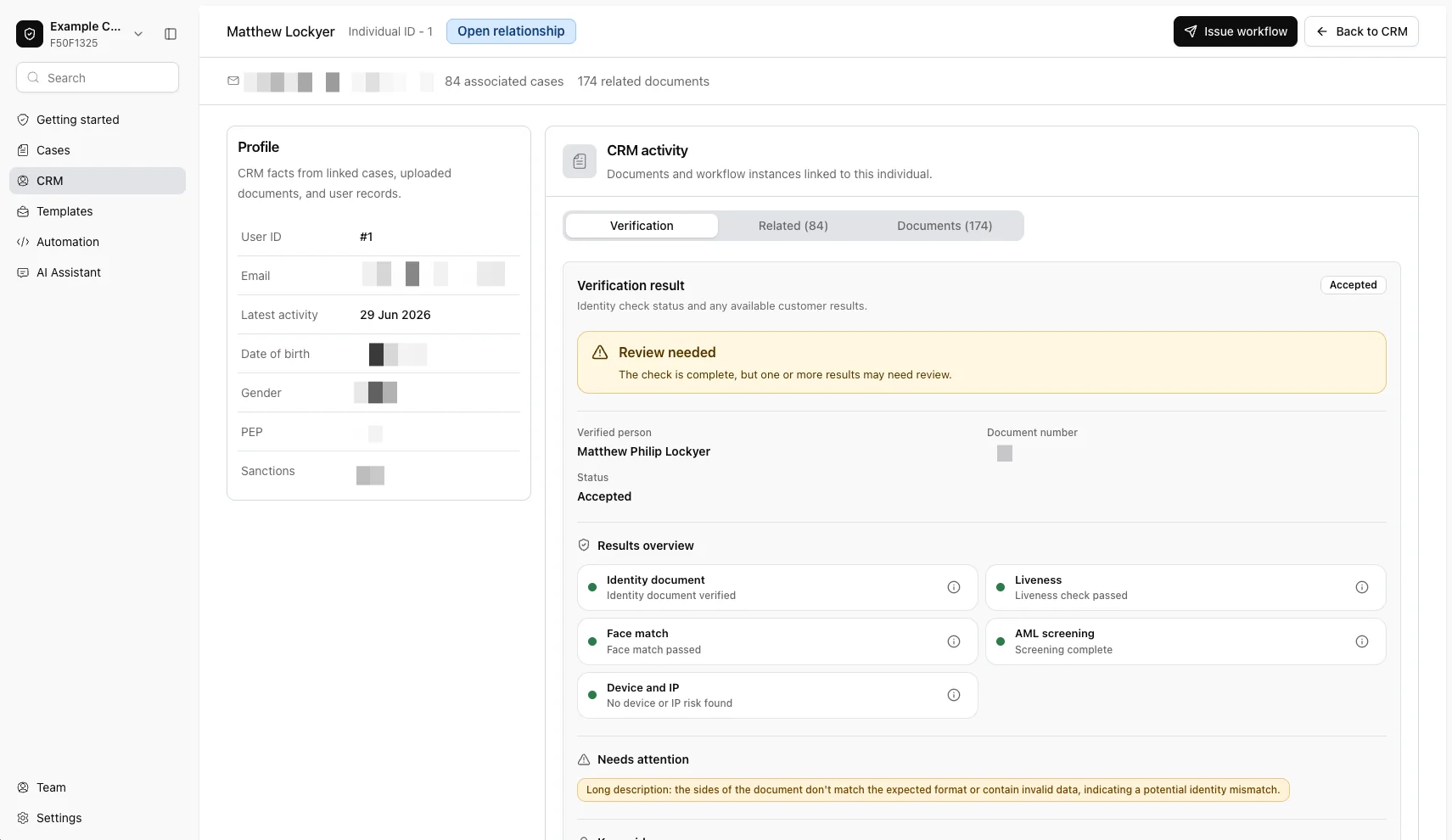
What this screen shows
CRM separates the long-lived person or entity record from an individual case. Teams can review the core profile once, follow relationships between people and organisations, and open the onboarding, review or refresh cases linked to that record.
- Profile summary: Shows the record type, identity details and current status.
- Contact data: Stores the approved customer contact and address fields.
- Relationships: Connects people, entities and related parties.
- Linked work: Provides access to cases and workflow activity for the record.
Risk rules
05. Define risk rules and route the next step.
Rules map customer data and screening outcomes to risk levels. The workflow can use the result to route cases to enhanced due diligence or approval.
- Low, medium and high-risk mappings
- Editable by authorised users
- Results control workflow routing
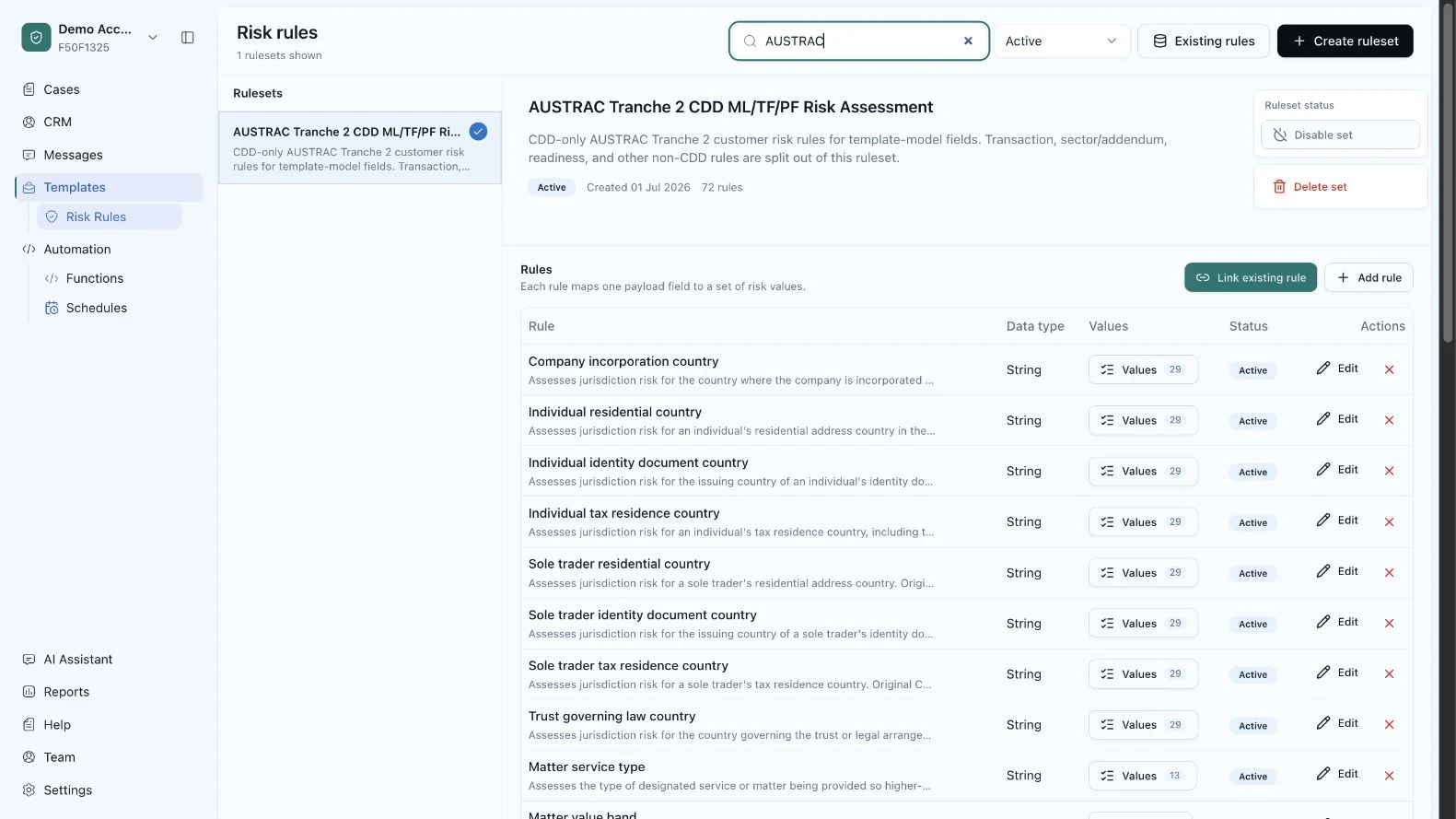
What this screen shows
A ruleset groups the logic for one assessment. Each rule compares a submitted or returned value with a configured condition and maps a match to a risk level. A Risk Calculation step then uses the combined result to select the next route.
- Ruleset: Groups the rules used for one risk assessment.
- Input condition: Matches a submitted value or returned screening result.
- Risk mapping: Assigns the configured low, medium or high result.
- Workflow route: Uses the result to continue, review or request enhanced checks.
AI assistant
06. Use the assistant to plan workflow changes.
The assistant can read the current workspace and draft a plan from a plain-language request. Teams review the proposed changes before acting on them.
- Plain-language requests
- Existing workspace context
- Reviewable plans
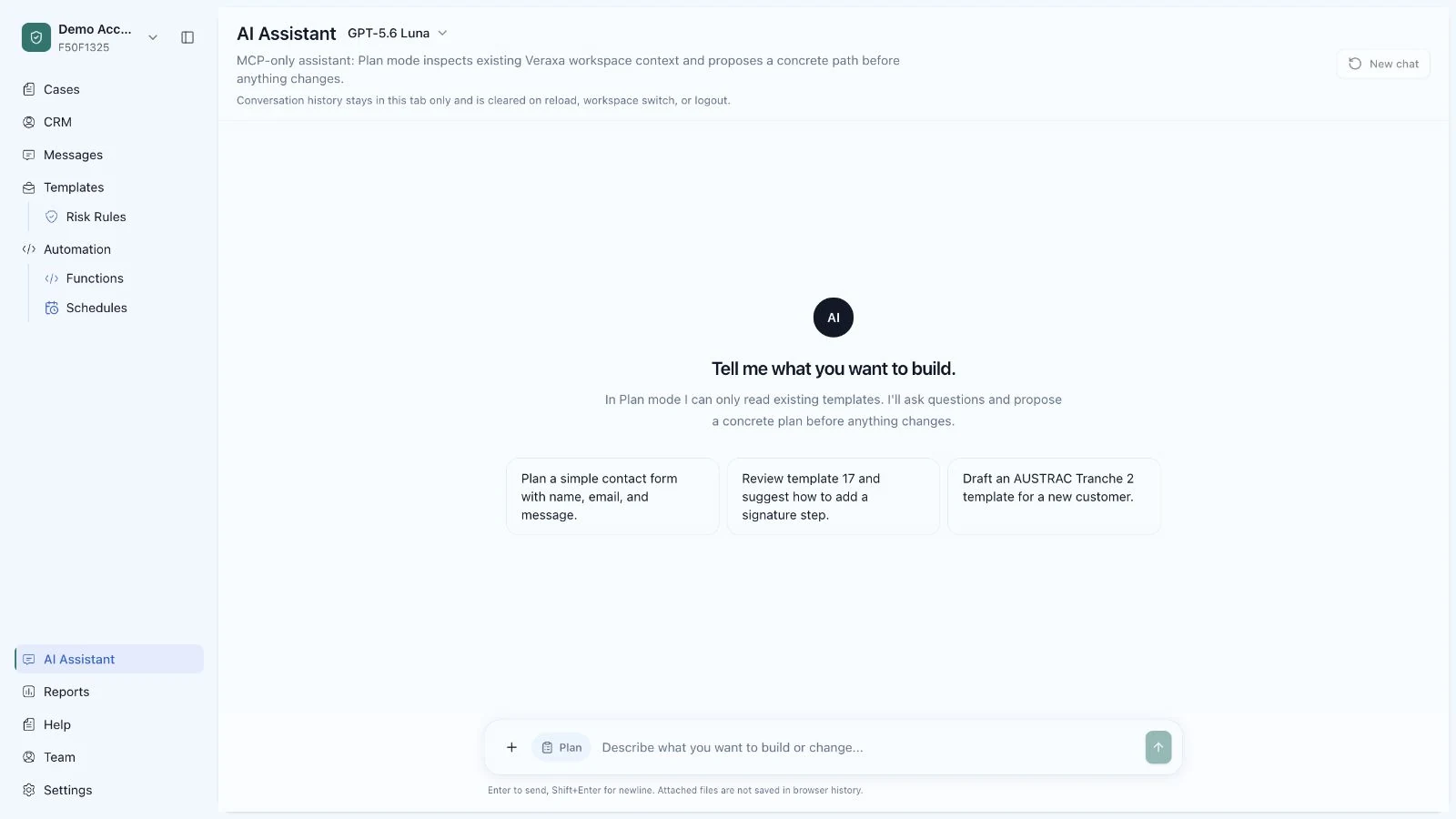
What this screen shows
The assistant works from a written request and the workspace information it is permitted to read. It uses that context to prepare a plan tied to existing templates and settings. The plan is reviewed before any proposed change is applied.
- Request: Describes the workflow or workspace task in plain language.
- Workspace context: Provides the assistant with the records it is allowed to inspect.
- Proposed plan: Lists the suggested changes before a user applies them.
Automation
07. Call external services from workflow steps.
Reusable functions connect workflow steps to verification providers, internal APIs and child workflows. Each function defines its method, variables and service endpoint.
- Reusable API functions
- Controlled methods, URLs and variables
- Linked workflows for related parties
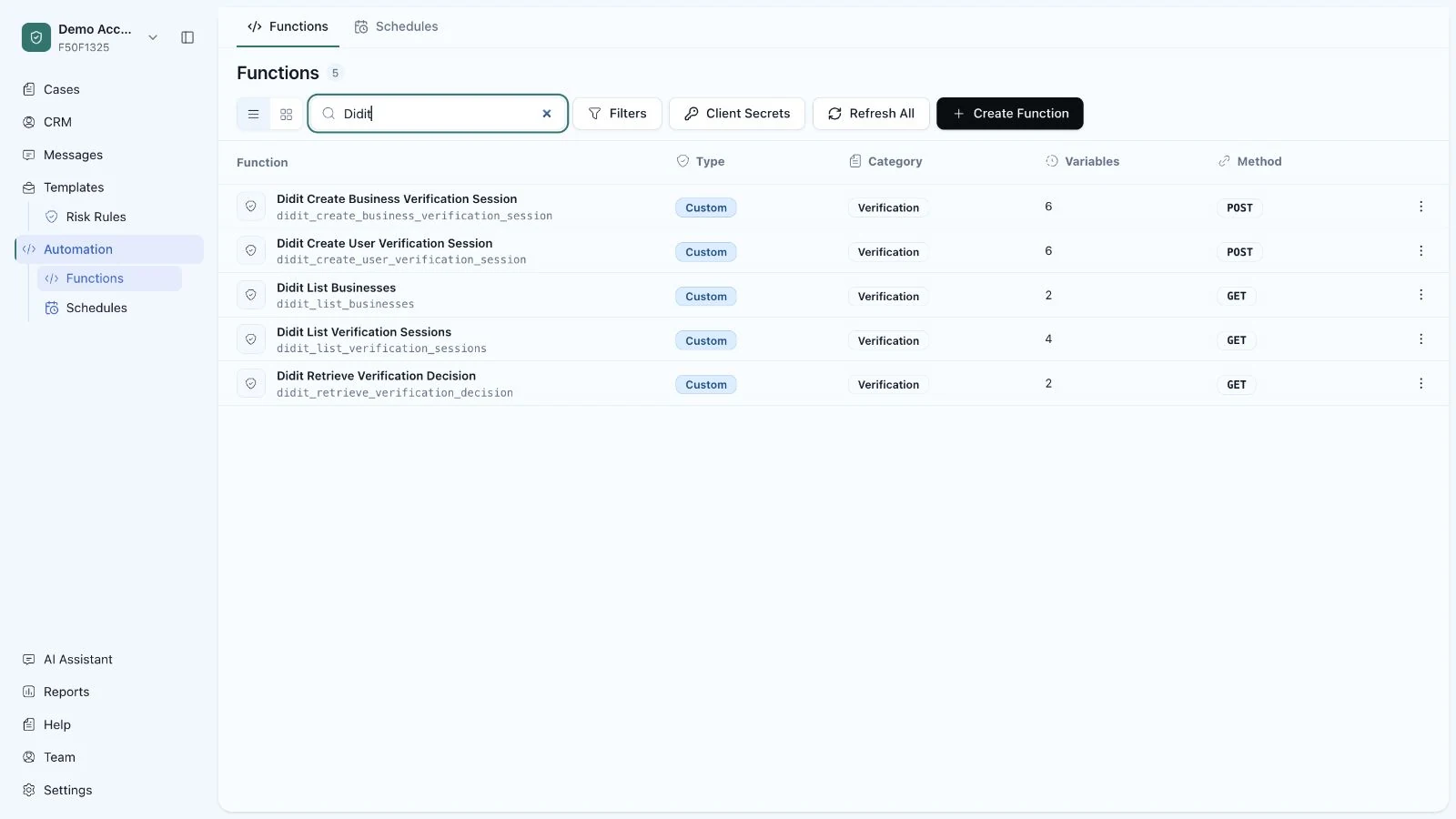
What this screen shows
The automation library holds reusable functions separately from workflow templates. A workflow step selects a function, maps values from the current case into its request and makes the returned data available to later rules, decisions or reviews.
- Function: Defines a reusable external or internal service call.
- Method and endpoint: Specify where the request is sent and how it is called.
- Variables: Map workflow values into the function request.
- Step result: Returns data that later rules and decisions can use.
Reports
08. View saved reports for cases and outcomes.
Reports provide reusable views of cases, users, billing and KYC outcomes. Each saved definition keeps its version and availability status.
- Case and user reports
- KYC and operational views
- Versioned report definitions
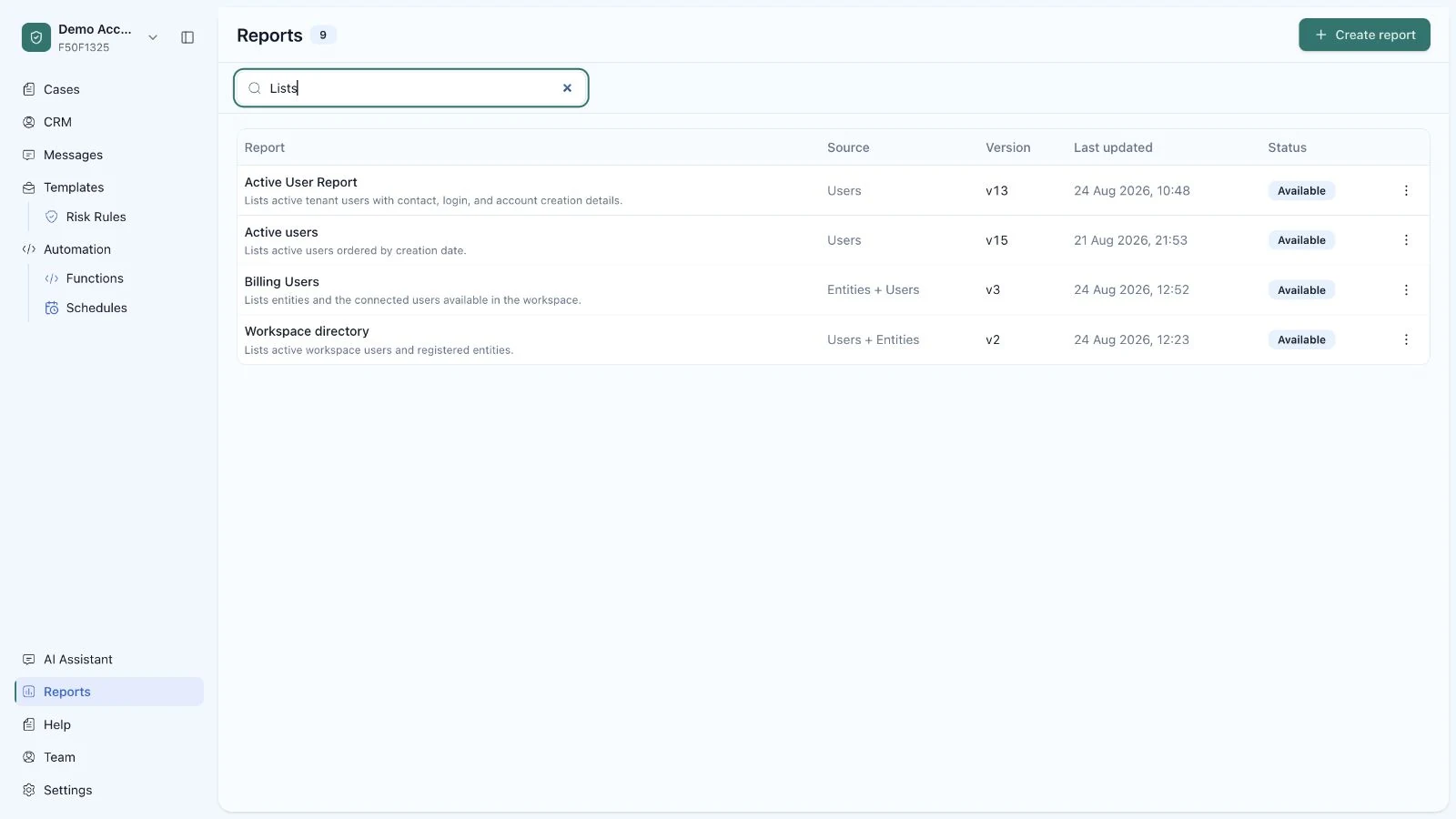
What this screen shows
The reports library lists the saved definitions available to the workspace. Each definition fixes the underlying dataset and output so teams can return to the same operational or compliance view without reconstructing its fields and filters.
- Saved definition: Keeps the selected fields, filters and output for reuse.
- Report type: Sets the underlying case, user, billing or KYC dataset.
- Version and status: Shows which report definition is active and available.
Customer portal theme
09. Configure the customer portal theme.
Choose a starter theme, then set colours, typography and layout while previewing the customer portal.
- Live portal preview
- Desktop, tablet and phone views
- Contrast and mobile layout checks
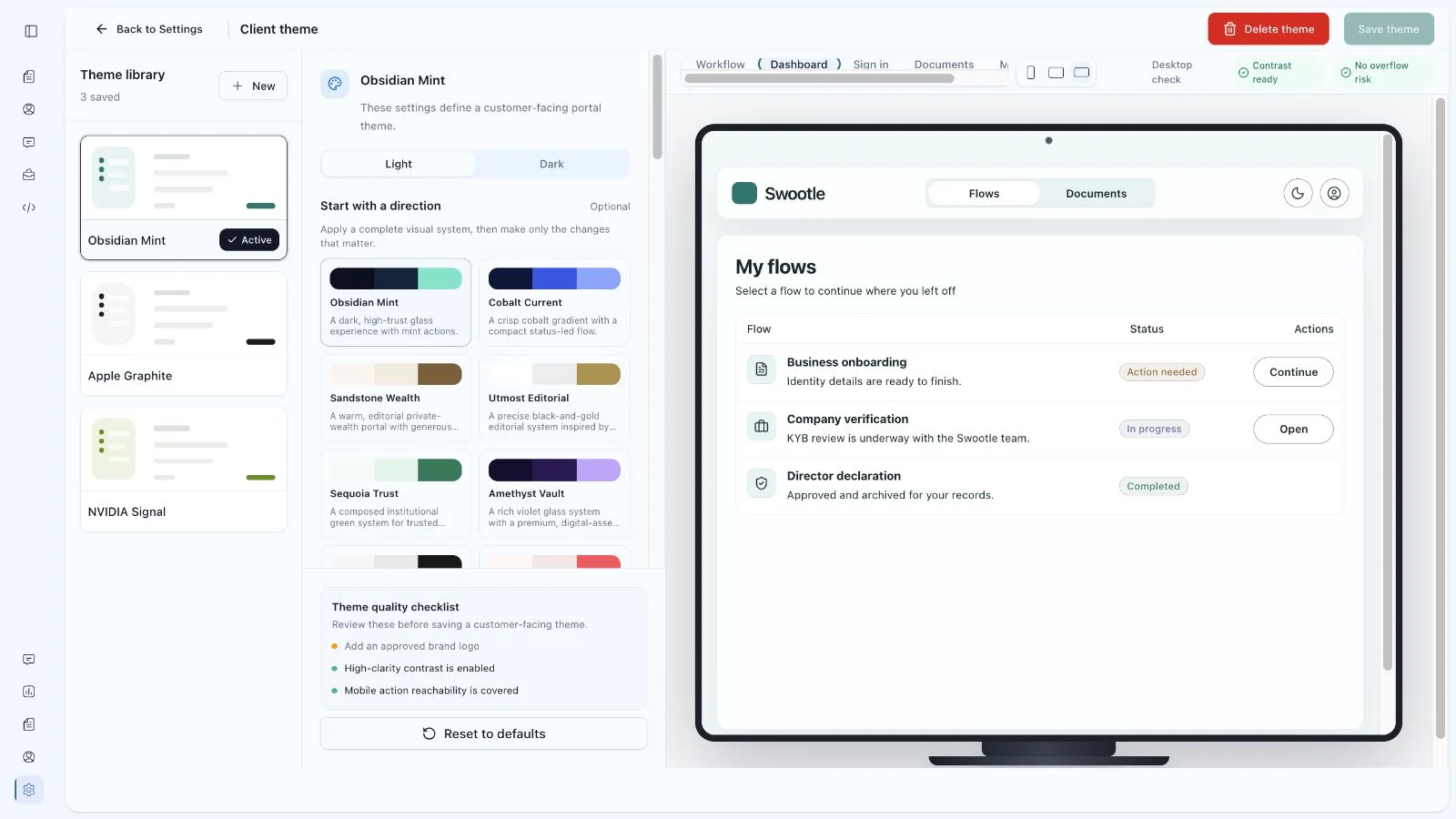
What this screen shows
Theme settings change how the customer portal is presented without changing the workflow itself. The Dashboard preview shows the wider portal layout, active flows and their statuses. The collapsed admin navigation leaves more space for the customer-facing preview.
- Starter theme: Provides a consistent initial colour and type configuration.
- Theme controls: Set brand colours, typography and layout values.
- Dashboard preview: Shows the customer portal dashboard, flow statuses and available customer actions.
- Device view: Checks desktop, tablet and phone layouts before release.